Updating to a new TouchGFX Version
When a TouchGFX application is created, the .touchgfx project file will have the same version as the TouchGFX Designer/X-CUBE-TOUCHGFX used to create it. But this does not mean that you are only able to use that specific version of TouchGFX to further develop your application.
TouchGFX is backwards-compatible by design and in most cases it requires a very simple procedure to make an older versioned application work with a new version of TouchGFX.
Simply open your newly installed version of TouchGFX Designer and try to open your older application either through recent applications or the Open dialog. You will be greeted with the following popup:
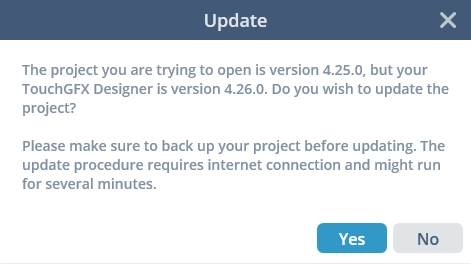
Update popup
Caution
Press 'Yes' and the updater will start. After it is finished, the application will open as normal in TouchGFX Designer and you are ready to use the new version.
In rare cases, you will have to do some manual changes to an application to make it fully updated to a new TouchGFX version. Consult the Known Issues section if you are having additional problems updating an application to a new version.
Update TouchGFX Generator
When you generate code in TouchGFX Designer for a migrated project, TouchGFX updates the TouchGFX version in the project's .ioc file automatically. TouchGFX Designer cannot, however, trigger STM32CubeMX to regenerate code. Since code generation in STM32CubeMX is often required; open the .ioc file in STM32CubeMX, confirm the X-CUBE-TOUCHGFX package shows the intended version, and then generate code.
Before opening the .ioc file, ensure that the new X-CUBE-TOUCHGFX package is installed in STM32CubeMX. You can do this in one of two ways:
In STM32CubeMX go to
Help→Manage embedded software packages→STMicroelectronics→X-CUBE-TOUCHGFX. Click the refresh button to fetch the latest packages, select the package, and clickInstall.If the release is very new and not yet available from the STM32CubeMX server, download the
STMicroelectronics.X-CUBE-TOUCHGFX.x.x.x.zippackage from st.com. In STM32CubeMX openHelp→Manage embedded software packages→From Local..., select the downloaded ZIP, and clickOpen.
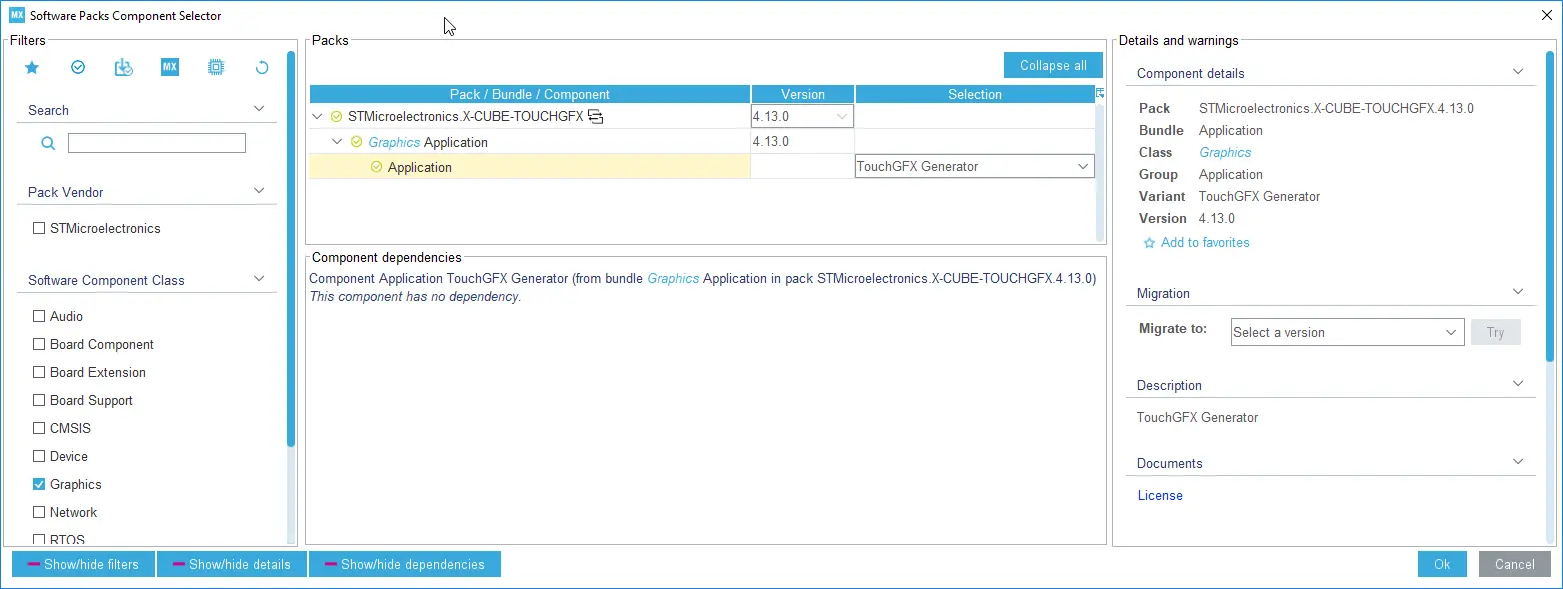
Software Packages Manager: Install TouchGFX Generator
After either procedure the package will be installed in STM32CubeMX. Then open the .ioc file, verify that X-CUBE-TOUCHGFX has been migrated to the new version, validate the configuration, and generate code.
Note
- You can update the TouchGFX Generator in STM32CubeMX before updating the .touchgfx file, but the recommended order is to update the .touchgfx file first.
- For more info on how to install X-CUBE-TOUCHGFX in STM32CubeMX see Installing TouchGFX Generator in STM32CubeMX.
Caution
- The migration is a two-step process that requires code generation from both STM32CubeMX and TouchGFX Designer.
TouchGFX/targetcode generated by the TouchGFX Generator is written to disk only after you press the Generate Code button in STM32CubeMX.