Image compression on Chrom-DEC
This section discusses how to use TouchGFX on hardware having the Chrom-DEC compressed graphics decoder. Chrom-DEC is a hardware accelerator that decompresses compressed images while they are drawn to the framebuffer. This offloads the CPU and significantly improves the rendering performance of compressed images. This means that applications can save flash by compressing their images, while still keeping a high frame rate.
The Chrom-DEC decoder is currently available in the STM32U3A6 microcontrollers.
Chrom-DEC Capabilities
TouchGFX supports two families of lossless image compression: L8 compression and RGB compression. Read more about the compression algorithms in the Image Compression article.
The Chrom-DEC decoder can decompress the following compression algorithms:
| Image format | Compression algorithm | Accelerated by Chrom-DEC |
|---|---|---|
| L8_RGB565, L8_RGB888, L8_ARGB8888 | L4 | No |
| L8_RGB565, L8_RGB888, L8_ARGB8888 | RLE | Yes |
| L8_RGB565, L8_RGB888, L8_ARGB8888 | LZW9 | No |
| RGB565 | QOI565 | Yes |
| RGB888, ARGB8888 | QOI | Yes |
Compressed images using an algorithm that is not supported by Chrom-DEC (L4 and LZW9) are decompressed by the CPU as on any other platform.
TouchGFX automatically uses Chrom-DEC when drawing the supported compressed images, when it is enabled in the TouchGFX Generator. No changes are needed in the application code. Chrom-DEC is used in the following cases:
- Drawing compressed images, e.g. with the Image, Button, or AnimatedImage widgets.
- Drawing the L8 RLE and RGB compressed parts of a Delta Compressed Animation.
- Decompressing RGB compressed images into the bitmap cache using
Bitmap::decompressHW(see below).
Chrom-DEC works together with the Chrom-ART (DMA2D) accelerator. Chrom-DEC decompresses the image data in blocks. When possible, the decompressed pixels are transferred by DMA directly to the framebuffer for optimal performance. When the pixels must be blended with the background and/or have un-aligned destination addresses, the decompressed pixels are written to a small scratch buffer, and then blended into the framebuffer by Chrom-ART.
Rendering Time Improvements with Chrom-DEC
The following examples illustrate the speed-up provided by Chrom-DEC compared to software decompression. We have used three different compressed images, which are redrawn in every frame:
| Example | Image size | Image format | Compression | Uncompressed size | Compressed size |
|---|---|---|---|---|---|
 Solid background | 240 x 240 | RGB565 | QOI565 | 115,200 bytes | 31,715 bytes (27.5%) |
 Transparent with gradient | 240 x 240 | ARGB8888 | QOI | 230,400 bytes | 21,247 bytes (9.2%) |
 Basic icon | 71 x 92 | L8_ARGB8888 | RLE | 6,532 bytes | 1,027 bytes (15.7%) |
The examples have been executed on an STM32U3A6 (Cortex-M33, 96MHz) with Chrom-DEC disabled (software decoding) and with Chrom-DEC enabled. The table below shows the render time of the images and the resulting CPU load when running at 60 fps:
| Example | Software decoding | Chrom-DEC | Render time | CPU savings |
|---|---|---|---|---|
| Solid background | 9.68 ms @ 59.1% | 1.23 ms @ 2.1% | 7.8x faster | 57.0% |
| Transparent with gradient | 14.15 ms @ 84.8% | 3.84 ms @ 3.5% | 3.6x faster | 81.3% |
| Basic icon | 1.00 ms @ 7.2% | 0.62 ms @ 2.2% | 1.5x faster | 5.0% |
We see that Chrom-DEC greatly reduces both the rendering time and the CPU load of compressed images. The improvement is generally largest for complex and/or opaque images, where the overhead of blending/decoding in SW is greatest. For small images, such as icons, the fixed overhead of setting up the decoding is relatively larger, and the gain is therefore smaller.
Even when the render time improvement is moderate, the CPU load is reduced significantly, as the CPU is free to run other tasks while Chrom-DEC and Chrom-ART are drawing the image.
Creating a Project
STM32CubeMX and the TouchGFX Generator support Chrom-DEC. The Chrom-DEC decoder is only available to TouchGFX if the GFXPAND decoder is enabled in the TouchGFX configuration in STM32CubeMX. If you use any of the TouchGFX Board Setups (TBS) provided with TouchGFX Designer this is already done. If you make your own custom project, make sure to:
- Activate the GFXPAND peripheral in STM32CubeMX and configure the DMA channels for the GFXPAND input and output.
- Enable the Chrom-ART (DMA2D) accelerator in Command List Mode and select "Yes" for Use DMA2D Accelerator (Chrom-ART) in the TouchGFX Generator.
- Select "Yes" for Use GFXPAND decoder (Chrom-DEC) in the TouchGFX Generator.
- Configure two DMA channels for the GFXPAND input and output (see section below).
Further reading
After enabling GFXPAND press "Generate Code" in STM32CubeMX. This regenerates the target configuration code. Now open the project in TouchGFX Designer and generate code there also (F4).
The Image Converter generates the compressed images in a format that matches the Chrom-DEC decoder when GFXPAND is enabled in the target configuration. It is therefore important to generate code in TouchGFX Designer after enabling or disabling GFXPAND in STM32CubeMX. The simulator uses the software decoders, and the Image Converter automatically generates compatible image data for the simulator.
Configuring DMA Channels for GFXPAND
The GFXPAND IP is a slave on the data bus and requires DMA to transfer image data between the memory and the GFXPAND peripheral. The following DMA configurations are required:
- Input DMA Channel: Global interrupt enabled.
- Output DMA Channel: 2D addressing + Global interrupt enabled.
The following is an example configuration for GPDMA on the STM32U3A6. Some settings re-configured at runtime to, e.g., align burst sizes with GFXPAND FIFOs or adjust data widths to target framebuffer format.
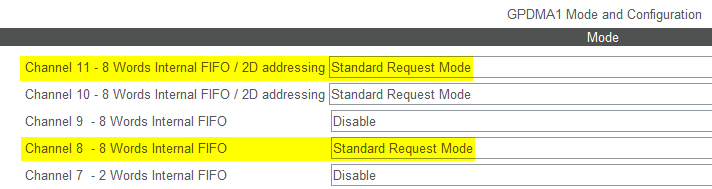
Choosing DMA channels for GFXPAND. Channel 8 (input) and Channel 9 (output).
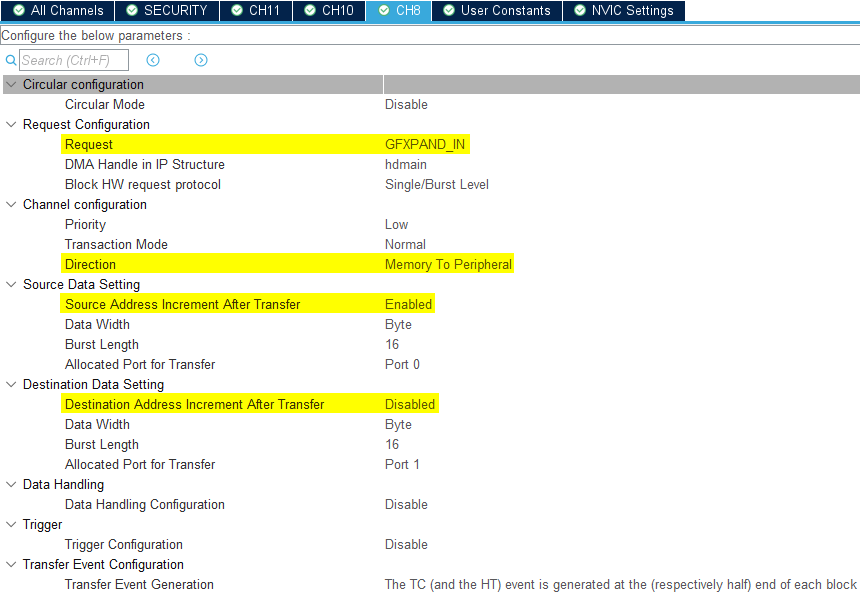
GFXPAND_IN dma configuration.
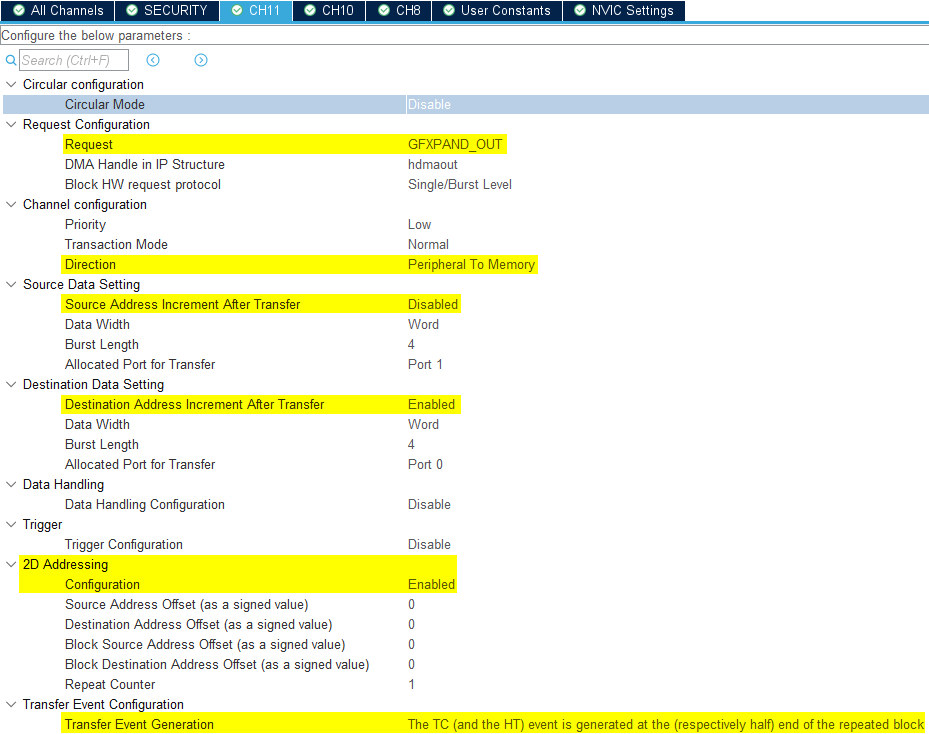
GFXPAND_OUT dma configuration.
Configuring Images
Images are configured for compression in TouchGFX Designer as on any other platform. See Working with Compressed Images.
For RGB images (RGB565, RGB888, and ARGB8888), select "Yes" for Compression. All RGB compressed images are decompressed by Chrom-DEC.
For L8 images, select "RLE" for Compression to make sure the image is decompressed by Chrom-DEC. If "Auto" is selected, the Image Converter may select the L4 or LZW9 algorithms, which are decompressed by the CPU.
Note
Framework Features
The software decoders for L8 RLE and RGB compressed images are not used on target when Chrom-DEC is enabled. It is therefore recommended to disable the RLE (under L8 Image Compression) and the RGB Image Compression framework features in TouchGFX Designer to save code size.
Click "Config" on the left of TouchGFX Designer, then click "Framework Features" and disable the features.
The L4 and LZW9 features must still be enabled if your application uses images compressed with these algorithms, as these are always decompressed by the CPU.
Further reading
Decompressing Images to the Bitmap Cache
Compressed images cannot be used with widgets that scale or rotate the image, such as ScalableImage and TextureMapper. A compressed image can, however, be decompressed into the bitmap cache at runtime, after which it can be used like an uncompressed image.
On Chrom-DEC platforms, RGB compressed images can be decompressed into the bitmap cache using Chrom-DEC with the function Bitmap::decompressHW:
TemplateView.cpp
void TemplateView::setupScreen()
{
    ...
    // Decompress the bitmap into the bitmap cache using Chrom-DEC
    bool r = Bitmap::decompressHW(BITMAP_CLOCK_BACKGROUND_ID);
    scalableImage1.setBitmap(touchgfx::Bitmap(BITMAP_CLOCK_BACKGROUND_ID));
    ...
}
The bitmap cache must be configured and big enough to hold the uncompressed image. Read more about configuring the bitmap cache here.
Bitmap::decompressHW only supports RGB compressed images (RGB565, RGB888, and ARGB8888). The function returns false for L8 images. Use Bitmap::decompress or Bitmap::decompressL8 to decompress L8 images into the bitmap cache using the CPU.
Using Bitmap::decompressHW instead of Bitmap::decompressRGB also avoids including the software decoder for RGB compressed images in the application. In the simulator, Bitmap::decompressHW decompresses the image in software.
Further reading
Chrom-DEC Limitations
The following limitations apply when using Chrom-DEC with TouchGFX:
- Chrom-DEC is only supported with framebuffers in RGB565, RGB888, and ARGB8888 formats.
- Chrom-DEC requires the Chrom-ART (DMA2D) accelerator to be enabled.
- L8 images compressed with the L4 or LZW9 algorithms are decompressed by the CPU.
Bitmap::decompressHWonly supports RGB compressed images.- Compressed images still cannot be used with widgets that scale or rotate the image, or with widgets that fill an area. See the list.